Self Role System
Create custom role assignment menus using modern Discord V2 components.
Creation & Setup
dashboard_customize Menu Setup
Launches a live dashboard to design your menu. Includes editors for Title, Content, Color, and Images.
deployed_code Deploy Menu
Posts a specific saved template to the current channel and starts listening for user role choices.
Management
list_alt Saved Menus
View all saved menu templates with options to post, edit, or delete them from the database.
Guide
Workflow
Design: Run /selfrole setup and use the dashboard buttons to style your menu's identity.
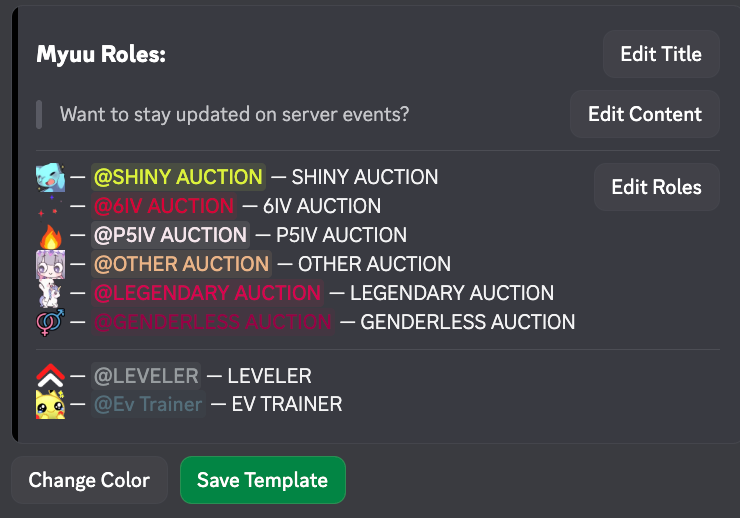
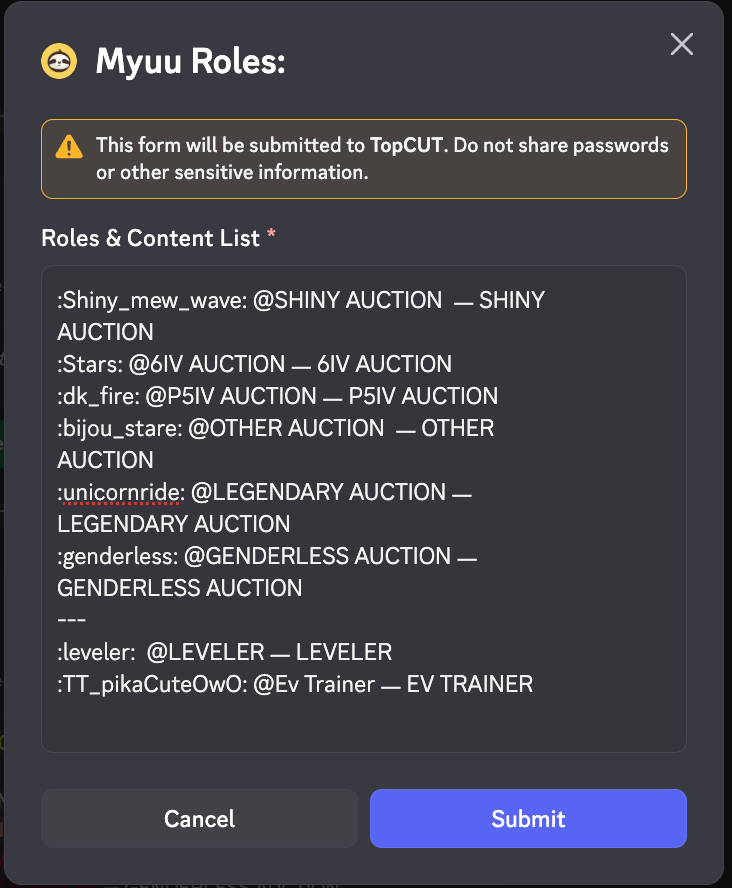
Add Roles: Click Edit Roles and paste your list using the smart name format. The bot will automatically search for emojis and roles by name if it's in the server.
:Stars: @6IV AUCTION ㅡ 6IV AUCTION
:dk_fire: @P5IV AUCTION ㅡ P5IV AUCTION
:bijou_stare: @OTHER AUCTION ㅡ OTHER AUCTION
:unicornride: @LEGENDARY AUCTION ㅡ LEGENDARY AUCTION
:genderless: @GENDERLESS AUCTION ㅡ GENDERLESS AUCTION
---
:leveler: @LEVELER ㅡ LEVELER
:TT_pikaCuteOwO: @Ev Trainer ㅡ EV TRAINER
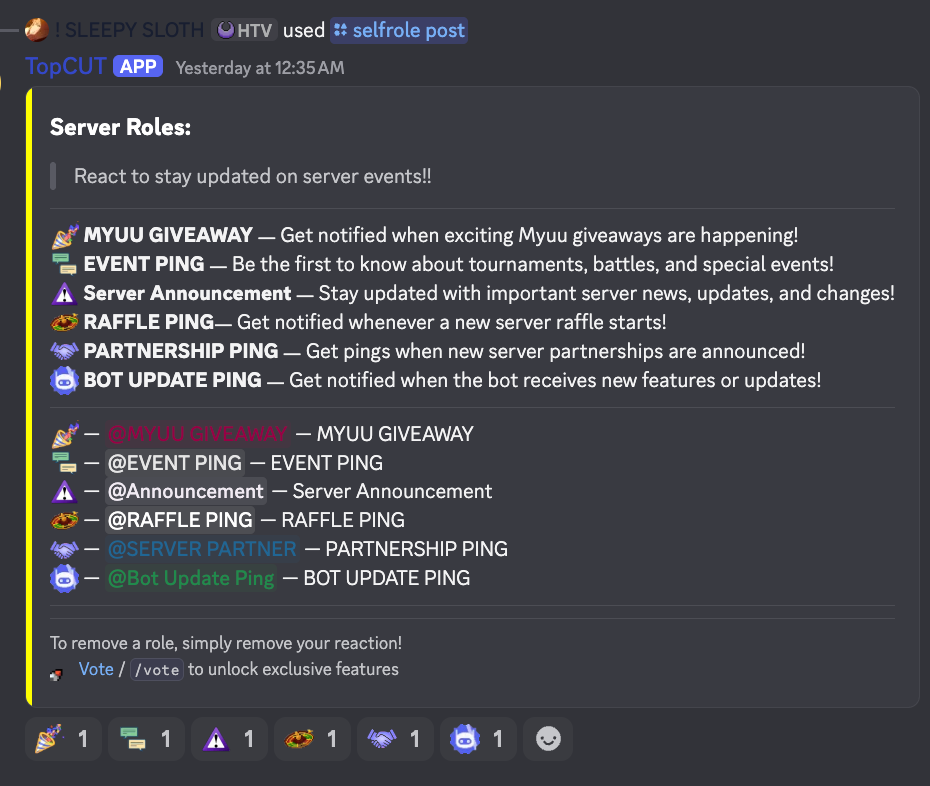
Deploy: Save the template and use /selfrole post to send it to any channel.
Final Output: The bot posts a sleek, interactive menu with buttons for each role, including a special cleanup button to remove self-assigned roles.
Format Key
:emoji: ㅡ The reaction icon
@Role ㅡ The role to assign
ㅡ ㅡ Description separator
--- ㅡ Creates a divider line
Pro Tip
You can create themed menus (e.g., Regional Roles, Game Roles) and reuse them across different channels or servers by saving them as unique templates.